How to migrate the database to a new environment
Sometimes a LAW or Explore case needs to be moved, including case databases stored in SQL or SQL Express. Maybe you have a new environment, are transferring to or receiving a LAW case from another environment, or have a new SQL server.
⚠️If you’re wanting to mass migrate databases, please work with your IT department to schedule a maintenance window and replicate/copy/mirror the databases to the new SQL server you want to target. The following instructions work for single migrations only. Mass migration is a more complex activity that will require your IT or database administrator to help orchestrate.⚠️
NOTE: Where applicable, LAW ED Loader, LAW Turbo and Explore cases are discussed separately.
Mirror/Cut-over Transfer
LAW ED Loader – LAW Turbo– Explore cases
NOTE: If all LAW cases are moving from one environment to a new environment AND you are utilizing a full version of Microsoft SQL Server (not SQL Express), it is highly suggested that you follow the steps listed under Mirror/Cut Over Transfer.
1. Set up the new environment including the new SQL server, new network storage, and the new workstations if applicable.
a. If the license server is also moving, ensure you install Sentinel RMS License Manager and LAW on the new license server
b. Do not move cases from a newer to an older version of SQL.
c. Ensure the login method of Mixed Mode is enabled on the new SQL server.
d. Ensure SQL is configured to allow connectivity.
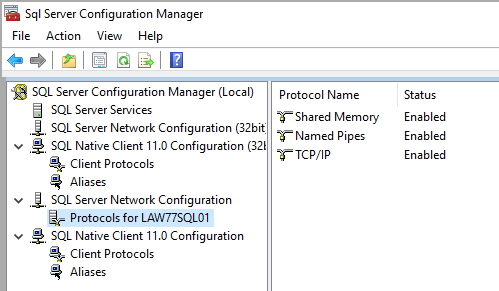
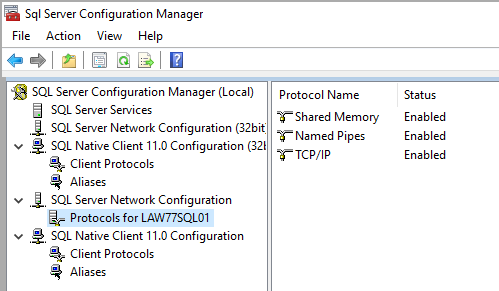
e. Open the SQL Server Configuration Manager and make sure the Named Pipes and TCP/IP options are enabled under Protocols as shown below:
2. Create all users and logins to be used in the new environment. Make sure all have full Read/Write access to SQL and the storage network.
3. Determine the current size of the SQL databases and the case folders on the storage network. These values will be used later to help determine the amount of time the transfer will require.
4. Once the network storage and SQL server are ready, and both environments can see each other, start the mirror functions for SQL and the storage network.
As the transfer starts, you want to determine how much data per hour is moving. Divide the total data size that you obtained in step 2 by the observed transfer rate number. The result will give you a good estimate as to how long this process will take to completely mirror the data. For large amounts of data, we suggest adding a day or even a week to the estimate.
5. QC the results of the mirror transfer.
⚠️If you’re wanting to mass migrate databases, please work with your IT department to schedule a maintenance window and replicate/copy/mirror the databases to the new SQL server you want to target. The following instructions work for single migrations only. Mass migration is a more complex activity that will require your IT or database administrator to help orchestrate.⚠️
Plan for a 4-hour outage of SQL and network storage
1st hour – At this time there should be NO activity in SQL and network storage. In this first hour, make sure all data in SQL and on the network has been mirrored completely to the new environment.
2nd hour –
- Turn off the Mirror States
- Rename the original SQL server
- Turn off or hide the original network storage
- Rename the new SQL server to the exact name of the original SQL server
- Deactivate the LAW license soft keys on the original license server and Active the softkeys on the new license server.
3rd hour – Open LAW on a workstation. If the move included network storage or the location of the LAW cases, clear out the case manager with the ‘Delete from List’ option.
NOTE: MAKE SURE THAT THE ‘DELETE SQL DATABASES FROM SERVER ON CASE DELETION’ IS NOT CHECKED.
NOTE : FOR LAW TURBO CASES: IF YOU MOVED THE SOURCE DATA, YOU WILL NO LONGER BE ABLE TO REPROCESS ANY OF THE FILES IMPORTED FROM THE ORIGINAL LOCATION
- Create new ED Loader, LAW Turbo or Explore case and complete a smoke test. The smoke test should include testing all parts of the workflow used by your company.
If the smoke test is completed successfully, evaluate the existing cases:
- For LAW ED Loader and LAW Turbo cases, open the smoke test case project.ini file and compare it to an older LAW case project.ini file. You are looking for any changes caused when the smoke test was created in the new environment. These environment-related changes will need to be updated in all the older Project.ini files. For example, the value for Integrated Security might change from 0 to 1 or vice versa. If changes are detected, backup each project.ini file and make the necessary changes.
- For LAW ED Loader and LAW Turbo cases, open the smoke test case EDLoader.case.config.ini file and compare it to the older LAW case EDLoader.case.config.ini file. You will need to update the ‘FTM_Server' and may need to update the Username and Password if those items change.
- For Explore cases, if the path to Sources is changed, remap Sources in the Explore case: Launch Explore, Open the case, click on the Wrench icon and select the Map Sources option. This step is required for reprocessing and export functions to continue in the case.
If there are many cases to edit, there are third-party tools on the market that can locate the files and complete bulk edits.
4th hour – buffer hour if needed to complete the steps above.
6. After you have made the necessary changes to your Project.ini file, open the original LAW case.
NOTE: If the LAW application was upgraded as part of the move, the LAW cases may also require updating. If necessary, the case will update when it is opened in LAW.
Manual Transfer and/or Archiving
⚠️If you want to mass migrate databases, please work with your IT department to schedule a maintenance window and replicate/copy/mirror the databases to the new SQL server you want to target. The following instructions work for single migrations only. Mass migration is a more complex activity that will require your IT or database administrator to help orchestrate.⚠️
How do I move LAW cases to a new SQL server and storage location? Or Archive the database?
LAW ED Loader – LAW Turbo– Explore cases
1. - Set up the new environment. This includes setting up the new SQL server, new network storage, and even the new workstations if applicable.
- If the license server is also moving, make sure to install Sentinel RMS License Manager and LAW on the new license server.
- Do not move cases from a newer to an older version of SQL.
- Ensure the login method of Mixed Mode is enabled on the new SQL server.
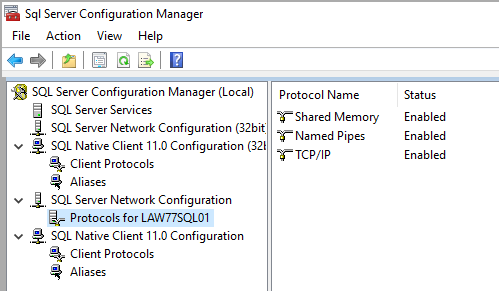
- Ensure SQL is configured to allow connectivity. Open the SQL Server Configuration Manager and make sure the Named Pipes and TCP/IP options are enabled under Protocols as shown below:
2. Create all users and logins that are to be used in the new environment. Make sure all have full Read/Write access to SQL and the storage network.
3. Create a case in the new location and complete a smoke test. The smoke test should include all parts of the LAW application workflow used by your company.
4. Create a folder in the new location for the LAW case being transferred. We suggest a naming structure that helps you identify the case folder by client name, matter name or number, or some other naming scheme that makes sense to all LAW users in the company. For archived case folders, we suggest that you have a top-level case folder, followed by a LAW case folder, a folder for the SQL database, and an additional folder for miscellaneous files also related to the case.
5. Open the original case folder of the LAW case that is to be moved. Copy the Natives, Text and Images folders as well as all the supporting LAW case files in the folder, such as the project.ini file. It is best to copy a LAW case from the top-level case folder, however, if the case and the images are stored in separate locations, make sure to copy both case and image folders to the to the new location.
6. Ensure the case is inactive. Then with a forensically sound copying tool, copy the database to the new location.
7. Upon copy completion, right click the top-level folder of both the original and new location folders and select Properties. Verify that the file count and size are the same number. NOTE: size needs to be compared on the bytes level for accuracy.
8. Detach the case in the SQL database engine:
- Close LAW on all workstations.
- Launch SQL Server Management Studio.
- In the Object Explorer window, locate the database that is to be moved.
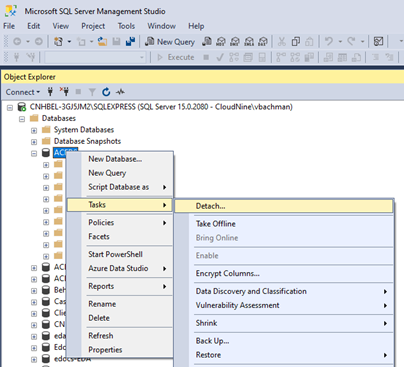
- Right click on the database name and select Tasks > Detach Database.
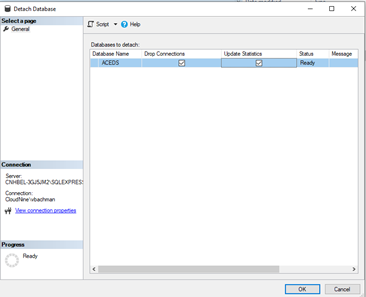
- Check the boxes for Drop Connections and Update Statistics, and press OK.
9. Now locate the database engine MDF and LDF files to copy or move to the case Folder:
In the Object Explorer window, right click on the SQL Server > Properties > Database Settings.
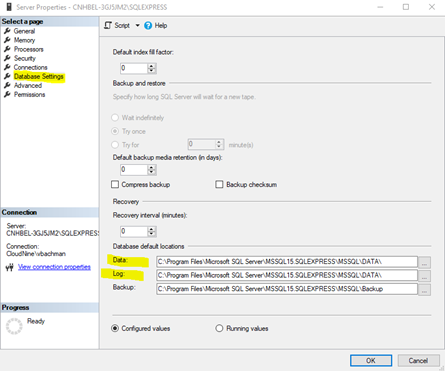
Note the location of the Data and Log folders in the display.
Navigate to these folders and copy or move the database MDF and LDF files (saved when the database was detached) to the new SQL Server database folder. (For case archiving, the MDF and LDF files can be copied to the case folder, keeping all components of the case together in one location.)
10. With a forensically sound copying tool, copy the MDF and LDF databases to either:
- The New SQL Server
- The Archived location/drive
11. Remove the case from the old environment.
LAW ED Loader and LAW Turbo cases
For ED Loader and LAW Turbo cases, open LAW and when prompted with the Case Manager dialog box, find the case that was moved:
- Verify that the ‘Delete SQL database from server on case deletion’ is not checked.
- Then click ‘Delete From List’ option in the top menu bar.
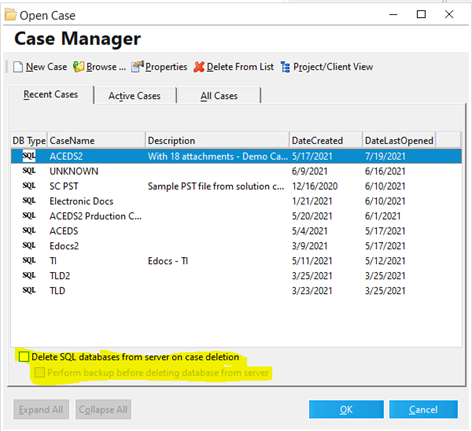
Explore cases
For Explore cases, open Explore and select your case. Click on ‘Remove from List’
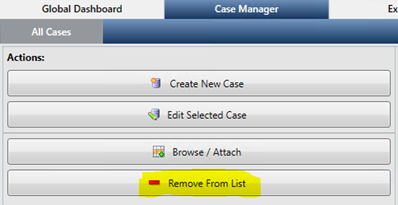
Restoring an Archive/Transfer case
Now that the case has been moved or archived, how do I add it back into an environment?
NOTE: to restore a case from archive storage, forensically copy the case to the network storage location, and the MDF and LDF files to the new SQL storage location.
1. Confirm the environment to which the case is moving. This includes the SQL server and network storage.
- Do not move cases from a newer to an older version of SQL.
- Ensure the login method of Mixed Mode is enabled on the SQL server.
- Ensure SQL is configured to allow connectivity. Open the SQL Server Configuration Manager and make sure the Named Pipes and TCP/IP options are enabled under Protocols as shown below:
2. Confirm all users and logins that are to be used in the environment. Make sure all have full Read/Write access to SQL and the storage network.
3. Locate where MDF and LDF files are stored for the SQL server:
- In the Object Explorer window, right click on the SQL Server > Properties > Database Settings.
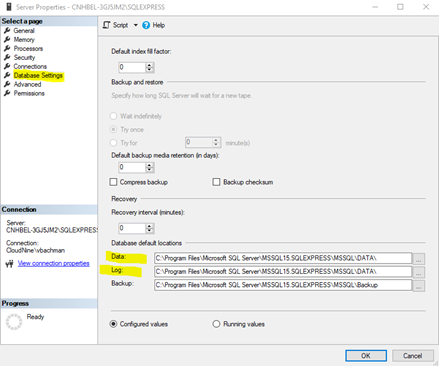
- Copy the MDF and LDF files that you want to add to SQL, into the folder location noted above.
- On the new SQL server, open SQL Server Management Studio.
In the Object Explorer window, right click on Databases and select "Attach".
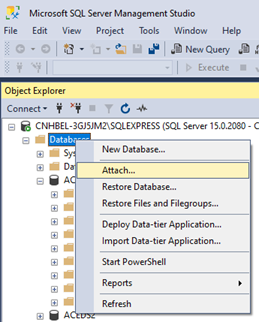
- Click "Add" in the Attach Databases window.
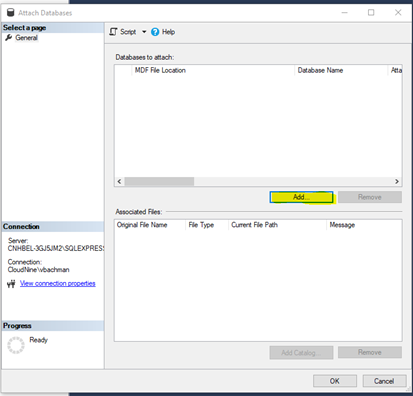
- Browse to the MDF file you copied or moved to the new SQL server and click OK. The LDF file will also be attached as long it is the same location as the MDF file.
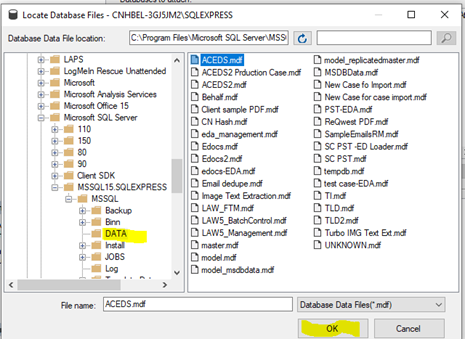
4. The next step is to update the case .INI file with the new SQL server name:
- Navigate to project.ini and change name of the SQL server using a text editor such as Notepad.
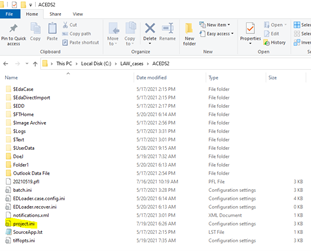
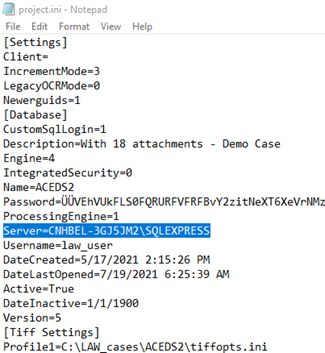
5. Add your case to the environment.
LAW ED_Loader and LAW Turbo cases
For ED Loader and LAW Turbo cases in LAW:
- Launch LAW on a workstation configured to use the new SQL server, select Open Case and browse to the Project.ini file.
- The LAW case should now be connected and functioning on the new SQL server.
- Once the case is added, open another case and then open the Case Manager one more time. Don’t Open the case, just select it and click Properties:
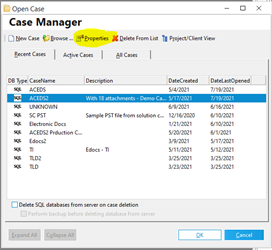
- Make sure your Paths to the case and the images are correct. Edit if necessary.
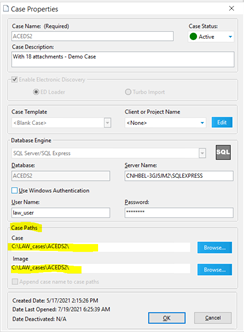
Explore cases
For EXPLORE cases:
- Launch Explore on a workstation configured to use the new SQL server.
- If the SQL server name has changed, you will need to update it in the ‘eda-case.ini’ file.
- Click on Browse and select the location of the ‘eda-case.ini’.
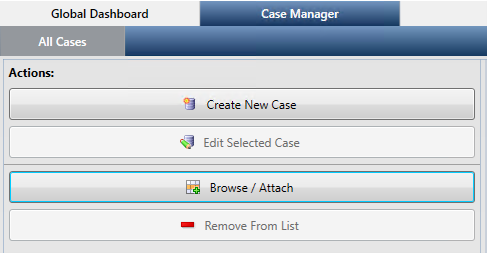
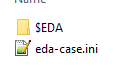
- Currently in Explore, the Index path can only be modified through SQL.
- Open SQL Server Management Studio, Expand the Databases folder in the Object Explorer window.
- Select the case database. NOTE: Explore cases have “-EDA” appended to the case name.
- Expand the Table folder and locate the dbo.Indexes table for the case.
- Right click and select 'Edit top 200 Rows'.
- Edit the full path to each index partition CAREFULLY!
- For changes to take place, click to a different row after editing the last index to commit the change to the table.
- NOTE: while editing, if the Pen icon is showing, the change has not been committed. See the highlight in the screenshot below:

Related Articles
How to customize image properties
You can add annotations to TIFF images. After you create an annotation object, you can customize its properties. You can later edit your annotations or permanently merge them to the file. The following tools are available for annotating TIFF images: ...